

Lean B2B software teams use AI-powered learning video creation to ship task-focused product tutorials in step with two-week engineering sprints rather than letting help-center videos drift months behind the live interface. In almost every early-stage or Series A SaaS company, customer education starts with good intentions. Right before a major launch, a founder or product manager spends a Sunday afternoon recording a seven-minute screen share that walks through the entire application from login to billing.
Three sprints later, engineering renames the workspace permissions tab, moves the API webhook key into a drawer modal, and adds a two-step approval check. Suddenly that seven-minute video is wrong at minute two. Because nobody has two spare hours on release Tuesday to re-record, re-edit, and re-caption the entire walkthrough from start to finish, the outdated clip stays up in the help center while support tickets pile up in Intercom or Zendesk.
Fixing tutorial drift in a fast-moving startup has very little to do with buying fancier microphones. It comes down to breaking monolithic product tours into modular, scene-based lessons that can be patched in five minutes when a single UI step changes.
Why Two-Week Sprints Demand AI-Powered Learning Video Creation
Long overview videos fail both the maintainer and the customer. On the production side, a single continuous timeline couples unrelated features together. If your video covers workspace setup, role permissions, CSV import, and Slack notifications in one MP4 file, a minor UI tweak to the CSV column mapper forces you to rebuild the whole asset.
On the user side, customers rarely sit through a ten-minute orientation movie before touching the software. As documented in Nielsen Norman Group’s research on instructional onboarding tutorials, upfront multi-screen tutorials place a heavy burden on working memory and are routinely skipped by users who just want to complete one immediate task.
Short, single-action clips solve both problems. When a tutorial answers one narrow question in 75 seconds (such as How to rotate a scoped webhook secret), users watch it when they open that modal, and product teams only touch that clip when the webhook modal changes.
Turning Sprint Release Notes Into Scene-Level Tutorial Drafts
The fastest way to keep documentation aligned with shipping code is to start from the artifacts your product team already writes for every sprint. Instead of writing a separate video script from scratch, product managers and customer education leads use AI-powered learning video creation inside Leadde.ai to turn release notes, PRDs, or help-center markdown drafts directly into editable multi-scene lessons.
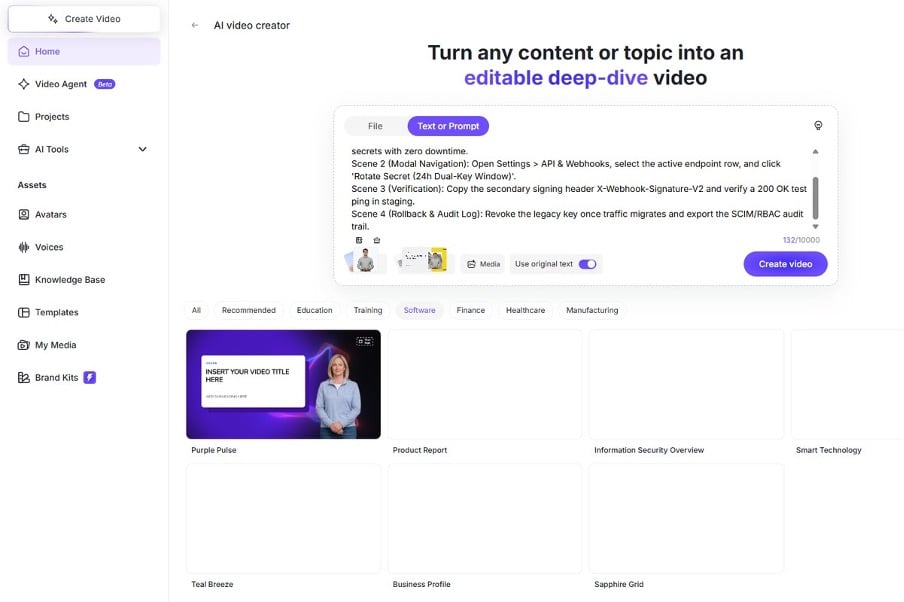
Turning structured B2B release notes into an editable scene-by-scene tutorial outline inside Leadde.ai before rendering.
Inside AI Video Creator, startup teams typically rely on two input paths depending on how the feature was documented:
- Paste release notes or PRD steps into Text or Prompt: You can paste up to 10,000 characters of structured release notes, ticket acceptance criteria, or changelog copy directly into the prompt box. When your draft already contains exact button labels, CLI flags, or permission role names that must not be paraphrased, switch on the Use original text toggle before generating the Outline.
- Pull recurring product specs from File or Knowledge Base: For larger feature guides written in .docx, .pdf, .pptx, or .txt (Max 500 MB, up to 100 pages per import), upload the file directly or reference your team’s stored documentation inside the workspace Knowledge Base (100 MB per file).
Before generating the video scenes, review the proposed Outline chapter by chapter. Split any combined steps so that each scene represents one discrete screen state: Scene 1 states who needs the feature and what permission role is required, Scene 2 shows the configuration action, Scene 3 shows the verification state, and Scene 4 covers common error recovery.
Designing Modular Scenes That Survive UI Refactors
Once a startup adopts scene-based editing in Leadde.ai’s Studio workspace, four framing habits make each tutorial far more resilient to future design tweaks:
- Crop out unrelated navigation bars: Focus the 16:9 canvas on the active modal and the specific toggle being changed rather than showing twelve left-sidebar tabs that might be reordered next month.
- Keep one UI state per scene: When each click lives in its own scene with its own short narration block, swapping out step three next quarter takes less than three minutes.
- Lock your startup’s visual identity in Brand Kit: Store your product typography, hex color palette, logo watermark, and subtitle styling once in Brand Kit so every release clip looks consistent.
- Standardize acronym pronunciation and pause beats: Set phonetic rules via Pronunciation for terms like SAML, SCIM, OAuth, and RBAC, and drop a Pause marker before key confirmation clicks.
The Sprint Triage Matrix: When to Skip, Patch One Scene, or Rebuild
Not every pull request merged on Thursday afternoon deserves a video edit on Friday morning. Without a clear triage filter, a small product marketing or support team will burn out chasing minor CSS changes. Use the decision matrix below during your pre-release check to decide what action a sprint change actually requires.
| UI or Workflow Change Scope | Video Action Required | Typical Turnaround in Studio | Primary Owner |
| Cosmetic CSS, icon refresh, or sidebar tab reordering (no step change) | Skip until quarterly review: Focused modal crops remain valid; users can still follow the exact workflow | 0 minutes | Support Lead notes for next scheduled audit |
| Renamed button label, new dropdown field, or added confirmation step | Patch one scene: Open existing project in Studio, replace the visual callout and script in Scene 2 or 3 only, and re-export | 5 to 10 minutes | Product Manager or Customer Education Specialist |
| New feature module or multi-role workflow overhaul | Build new modular clip: Generate fresh 4-scene Outline from the PRD via Text or Prompt or File | 20 to 30 minutes | Product Manager drafts; Solutions Engineer verifies |
| Multi-region launch for enterprise accounts (EU / LATAM / APAC) | Clone via Duplicate: Duplicate the verified English project and translate voiceover + .srt captions across 88 languages | 10 to 15 minutes per locale | Customer Success or Regional Enablement Lead |
Running this five-minute triage during sprint review prevents two common failure modes: ignoring broken tutorials when a core workflow changes, and wasting hours rebuilding whole videos when only one modal field moved.
Assigning Clear Ownership Between Product, Support, and Customer Success
In a 25-person SaaS company, shared documentation ownership means nobody updates it. High-velocity teams split the work across three handoffs tied to the sprint calendar:
- At feature freeze (3 days before release): The Product Manager pastes acceptance criteria into AI Video Creator, checks the 4-scene Outline, and generates the draft project in Studio.
- During staging QA (1 day before release): A Solutions Engineer previews the share link, verifies field names against the staging build, and adjusts Pronunciation or Pause cues.
- On release morning: Customer Success embeds the 1080p (Full HD) MP4 and .srt captions into the help center and changelog.
Shipping the Update Before Customers Open a Support Ticket
The real test of a startup’s enablement workflow is whether a customer who logs in ten minutes after a deployment sees the current workflow or last quarter’s interface.

Checking a patched tutorial scene against the staging build during pre-release QA before updating the customer help center.
When you publish the updated clip, archive the old version tag in your project list (v2.3 -> v2.4), confirm that workspace share permissions allow external viewers to play the video without a login prompt, and check your viewing analytics a week after launch. If half of your viewers replay Scene 3 twice, either the narration moved too fast or that UI step needs another look in the next sprint.

Author: Jean-Pierre
Jean-Pierre is a polyglot communication specialist, freelance journalist, and writer for startup.info with over two decades of experience in media and public relations. He creates engaging content, manages communication campaigns, and attends conferences to stay up-to-date with the latest trends. He brings his wealth of experience and expertise to provide insightful analysis and engaging content for startup.info's audience.