
Startup launch posts often fail in the picture, even when the paragraph above them is clear. A founder can describe a new export button in one sentence and still confuse a reader if the screenshot shows a control the build does not have. An AI Photo Editor helps only when you start from the screenshot you already shipped, ask for one visible change, and read the interface again before the note goes out.
The costly version of this job shows up on the evening when someone cleans a cluttered desktop in the capture, a label on the primary button shifts by a word, and the thread stalls while people compare the file with the staging app. That lost time is the part worth planning for. Open the live product beside the file and decide what may change before you touch a prompt.
Start From The Screenshot You Already Shipped
A launch screenshot is a record of the product, not a poster about the product. The window frame, the button order, and the words on those buttons are the evidence a reader uses to decide whether the feature is real. If the capture is messy, the mess is often a second window, a notification, or a cable on the desk. Those are fair things to remove. The menu of the app is not.
PicEditor AI is built as an online photo workspace, so the practical move is to bring the real capture in and describe a small edit. Treat the original file as the copy you can return to. Save it under a name that includes the build, and keep that file out of the folder you will attach to the post. If the edited version looks smoother but the product looks different, you still have the source.
Name One Change Before The Upload
Write the change in plain words before you open the tool. “Remove the Slack badge in the top corner” is a check you can pass or fail. “Make it look more premium” is not, because premium can mean a new background, a new font, or a button that was never in the build. One change also keeps the review short. If the result is wrong, you know which sentence caused it, and you do not spend the evening guessing which adjective to delete.
Put the live app on the second screen, on the same route the screenshot shows. If the post is about an export dialog, open that dialog. If it is about an empty state, use the empty state, not last week’s demo data. The picture and the product should be the same screen, or the comparison is theater.
Leave The Live Build Open Beside It
Read the screenshot once as a stranger would. Which label has to stay exact? Which corner is clutter? Write those two notes on the same line as the edit request. When the file comes back, you are not asking whether it looks polished. You are asking whether the label you marked still says the same thing, and whether the clutter you marked is actually gone.
This check takes a few minutes when the original is still beside you. It takes much longer after the post is scheduled, because then you are also undoing a social caption, a newsletter embed, and a quote that described the old picture. Do the comparison while the only cost is a rework of one file.
Three Steps On The Homepage Workspace
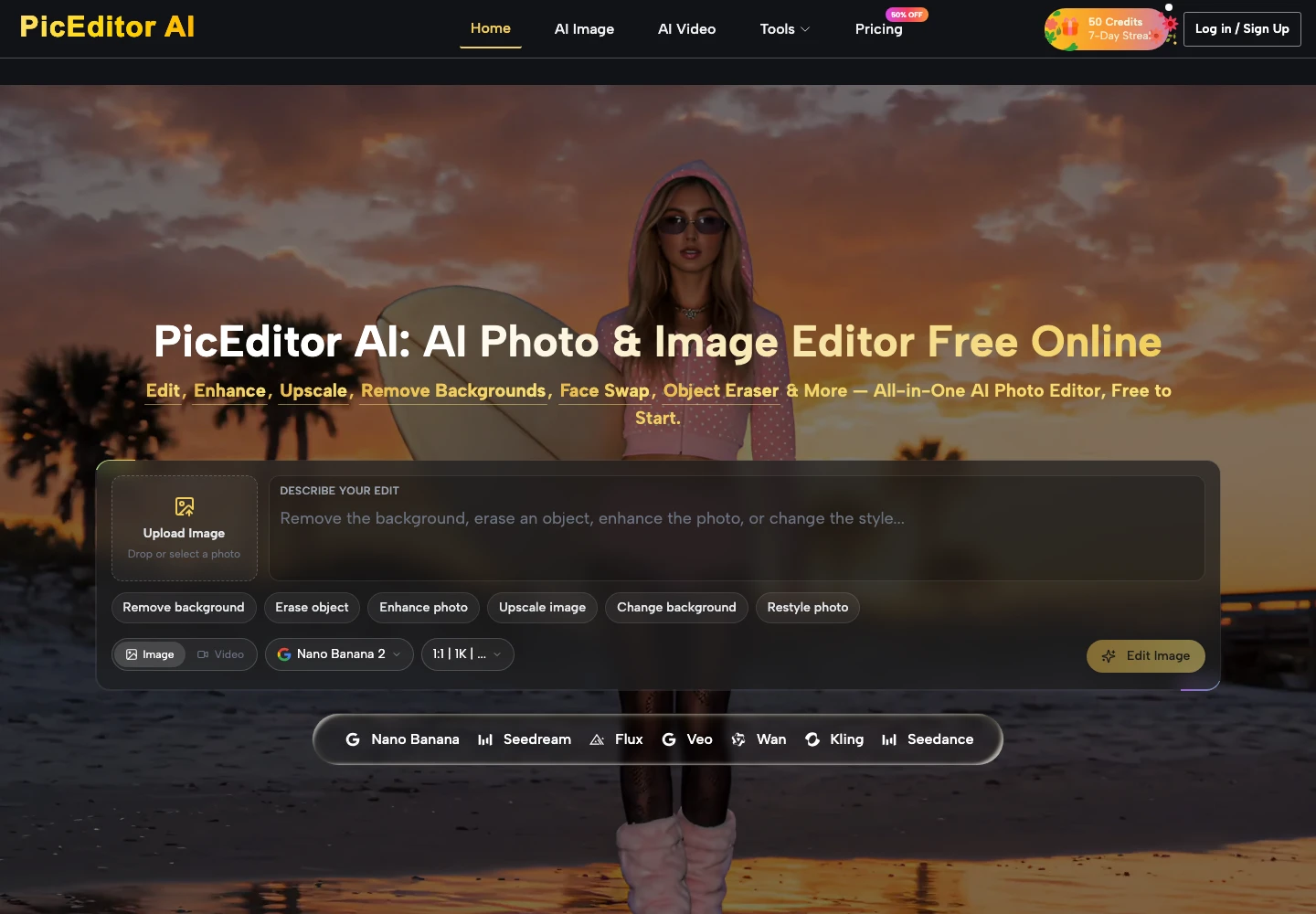
The homepage workspace is the right place for this job because it is an edit of a photo you already have, not a request to invent a product screen. The upload tile says Upload Image and tells you to drop or select a photo. The line under that action accepts JPEG, PNG, or WEBP, up to 30 MB. A normal product capture sits well under that cap. If the file is a full-resolution board photo of a monitor, export a PNG of the window first so you are not uploading the whole desktop.
- Upload the real screenshot, and keep the unedited file in a separate folder.
- Type one change into Describe your edit, or pick the chip that matches that change.
- Read every product label against the live build before the file is attached to the post.
Match The Chip To A Single Change
Under the prompt, the workspace shows six chips: Remove background, Erase object, Enhance photo, Upscale image, Change background, and Restyle photo. For a startup screenshot, Erase object is the chip that matches a notification or a stray window. Enhance photo is the chip that matches a dim capture. Restyle photo and Change background are the chips that can pull the picture away from the product, so leave them alone unless the post is explicitly about a new backdrop and the UI itself must stay put.
Use the chip row as a fence. If your request needs a new button, a new chart, or a slogan baked into the interface, it is no longer an edit of the screenshot. It is a different picture, and it should not carry the launch. Stay with the chip that names an object already visible in the capture.
An AI Photo Edit of this kind stays honest when the sentence names an object that is already in the file. “Erase the red badge at the top left, and do not change any text in the app” is something a reviewer can test by looking. A paragraph of mood words is not.
Read Labels After The File Comes Back
Bring the result back at the size the reader will see. On a phone, a button label that looked fine on a laptop can turn into a gray smudge. If you cannot read the word, the file is unreadable for a launch note, even if the colors are nicer. Zoom is not the reader’s tool. The post has to work at the width of the column.
Then put the result next to the live screen and compare three things only: the words on the primary control, the order of the main actions, and the empty state or the sample data. A cleaner shadow does not matter if a secondary link has become a different verb. That wrong label is a product claim. Readers will try to find it, and support will hear about the mismatch before the feature post has finished its first day.
Reject the file when any of those three items drift. Do not negotiate a “close enough” version into the launch folder. The original screenshot, slightly cluttered, is a better public document than a polished frame that teaches the wrong interface. You can run the same one-change request again from the source. You cannot unteach a button that never shipped.
Export The App Window Before You Upload
A photo of the monitor is the wrong source file. It adds the bezel, the lamp glare, and a second desktop you then have to erase. The homepage upload accepts JPEG, PNG, or WEBP up to 30 MB, which is enough for a direct window capture and tight enough that a full-desk photograph starts to feel like the wrong input. Export the app window itself. You spend less time asking the edit to ignore the room.

Before you accept the file, look at the frame, not only the center. If the title bar or the right-hand panel is missing, the edit cropped the evidence. Go back to the source and ask for the cleanup again, and say that the full window has to remain. Do not discover the crop after the image is already inside the blog template, because then the rework includes the layout as well as the picture.
PicEditor AI does not remove the need for that look. The workspace gives you a place to upload, a sentence box, and chips for a single kind of change. The decision about whether the product is still the product sits with the person who knows the build. A founder who cannot sit with the staging app for five minutes should hand the file to someone who can, instead of shipping the prettiest version in the folder.
Ship The Picture Only If The UI Matches
Use this path when the startup already has a real screenshot and the problem is clutter, a dim capture, or a distracting object around the window. PicEditor AI fits that narrow job. It is a weak fit when the team wants a product screen that does not exist yet, or when the words inside the app are the thing being rewritten. Those requests need a build, not a photo pass.
Keep the original, name one change, and read the labels at the size of the post. If the result is wrong, the cost is another pass on the same file, which is cheaper than a public correction. If the result matches, attach it and move on. The launch note should be about the feature, not about a button the editor invented.

Author: Kokou Adzo
Kokou Adzo is the editor and author of Startup.info. He is passionate about business and tech, and brings you the latest Startup news and information. He graduated from university of Siena (Italy) and Rennes (France) in Communications and Political Science with a Master's Degree. He manages the editorial operations at Startup.info.