News
Fix “Samsung Account Keeps Stopping” Error
Samsung account keeps stopping” error with proven solutions: clear cache, adjust OneDrive permissions, update apps, and reset preferences. Step-by-step guide

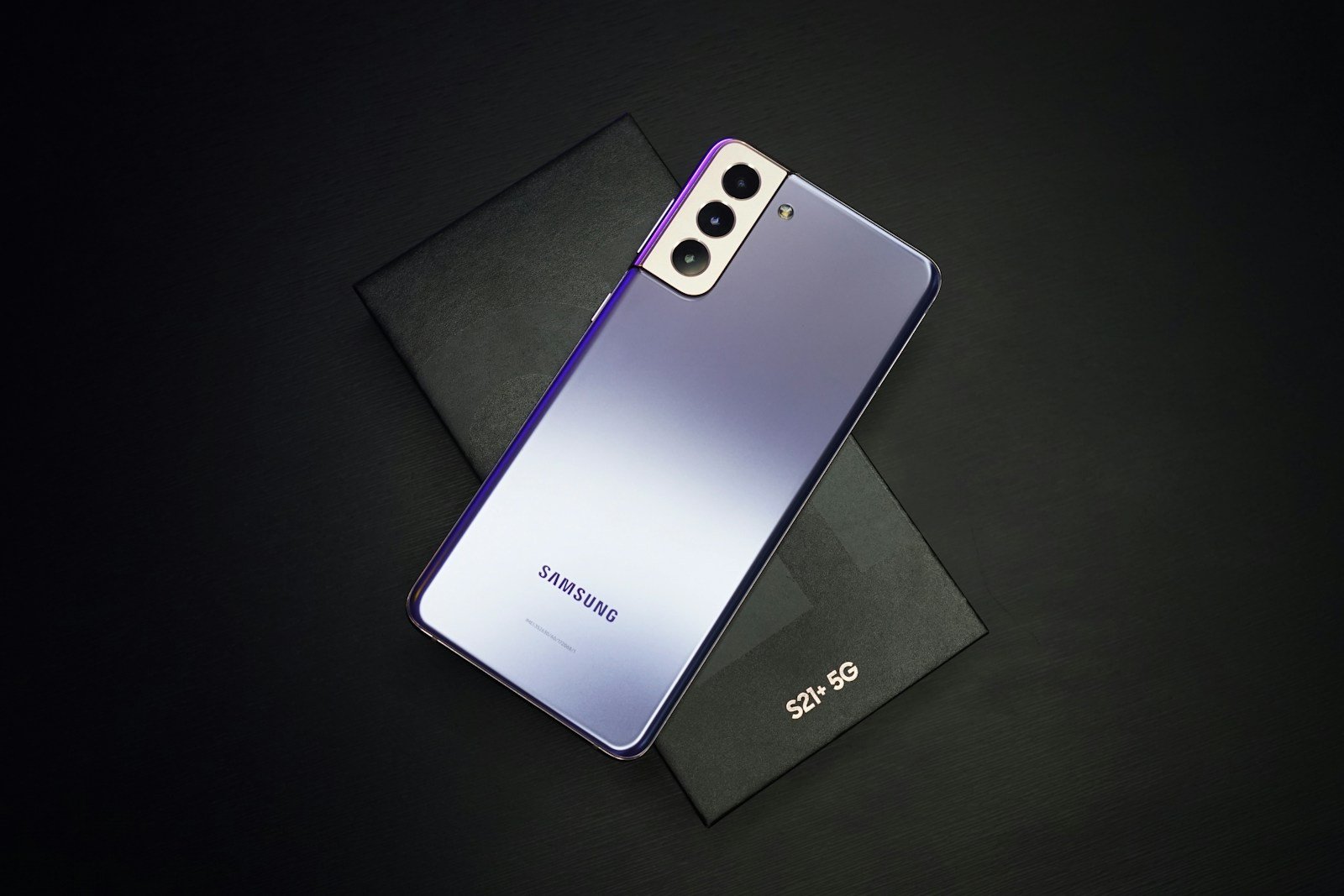
Your Samsung phone suddenly displays “Samsung account keeps stopping” every few minutes, interrupting whatever you’re doing. The notification won’t go away, and you can’t access Samsung Cloud, Find My Mobile, or Samsung Pay.
This frustrating error affects thousands of Samsung Galaxy users across different models and Android versions. The problem typically stems from corrupted cache files, permission conflicts (especially with OneDrive), outdated app versions, or system glitches that disrupt the Samsung Account app’s functionality. Recent updates in late 2025 and early 2026 triggered a surge of reports about this specific error.
Fortunately, multiple proven solutions can resolve this issue within minutes without losing your data or performing complicated technical procedures. This guide walks you through every fix from simplest to most comprehensive, ensuring you’ll find the solution that works for your specific situation.
Understanding Why Samsung Account Keeps Stopping

The Samsung Account app serves as the gateway to Samsung’s ecosystem of services including Samsung Cloud backup, Find My Mobile tracking, Samsung Pay transactions, and Galaxy Store access. When this app crashes repeatedly, it disrupts your ability to use these interconnected features. The error message “Samsung account has stopped” indicates the app encountered a fatal error and can’t continue running.
Corrupted cache files represent the most common culprit behind this error. As you use the Samsung Account app, it stores temporary data to speed up operations. When these cache files become corrupted through incomplete updates, system crashes, or storage issues, the app fails to launch properly. This corruption creates a loop where the app tries to load, encounters the corrupted data, and crashes immediately.
Permission conflicts, particularly involving OneDrive integration, emerged as a significant trigger in December 2025 updates. Samsung Account requires specific permissions to function correctly, and when OneDrive or the Samsung Account app lacks necessary permissions, crashes occur repeatedly. Reddit users identified this OneDrive connection as a breakthrough discovery that resolved the issue for many frustrated users.
Recent Update Issues Affecting Multiple Models
The December 2025 update introduced bugs that caused widespread Samsung Account crashes across Galaxy S24, S25, and other series devices. Users reported the error appearing immediately after updating their system software or the Samsung Account app itself. These update-related issues typically require uninstalling recent updates or waiting for Samsung to release patches.
Software conflicts between the Samsung Account app and other system applications can trigger persistent crashes. When multiple apps compete for resources or when one app’s update creates incompatibility with another, the Samsung Account app may fail repeatedly. These conflicts often resolve through selective app updates or system software patches.
Storage limitations occasionally cause app crashes when your device runs critically low on available space. The Samsung Account app needs adequate storage to save cache files, temporary data, and user information. When storage drops below critical thresholds, apps begin failing unpredictably, with Samsung Account being particularly vulnerable.
Force Stop and Clear Cache Method
Navigate to your phone’s Settings app and scroll down to tap “Apps”. This opens your complete list of installed applications. If you don’t immediately see Samsung Account in the list, tap the three-dot menu icon in the top right corner and select “Show system apps” to reveal hidden system applications.
Locate “Samsung Account” in the apps list and tap it to open the app information screen. You’ll see various options including Force stop, Uninstall updates, Storage, Permissions, and Battery usage. This screen provides access to all troubleshooting tools for this specific app.
Tap “Force stop” first to immediately halt the app’s current processes. A confirmation dialog appears warning that forcing the app to stop may cause issues. Tap “OK” to confirm. This action resets the app’s current state and clears any stuck processes causing the crash loop.
Clearing Cache Without Losing Data
After force stopping, tap “Storage” to access the app’s data management options. You’ll see two buttons: “Clear cache” and “Clear data” (or “Clear storage” on some devices). These options serve different purposes and produce different outcomes.
Tap “Clear cache” first and wait for the process to complete. This removes temporary files without deleting your login information, preferences, or account data. Cache clearing is non-destructive and should always be attempted before clearing data. The process usually completes within seconds.
Do not tap “Clear data” unless clearing cache alone doesn’t resolve the issue. Clearing data resets the Samsung Account app to factory defaults, removing all saved login credentials, preferences, and settings. You’ll need to sign back into your Samsung account after clearing data, so ensure you remember your password before proceeding.
Restart your phone completely after clearing cache. Press and hold the power button, tap “Restart,” and wait for your device to reboot fully. After restarting, open the Samsung Account app to check if the error persists. This method resolves approximately 60-70% of Samsung Account crashing issues.
Fix OneDrive and Permission Conflicts
A breakthrough solution discovered by Samsung community members involves adjusting permissions for both OneDrive and Samsung Account apps. This fix proved remarkably effective for users experiencing the error after December 2025 updates. The connection between OneDrive and Samsung Account creates dependency relationships that cause crashes when permissions aren’t properly configured.
Open Settings and navigate to Apps, then locate OneDrive in your app list. Tap OneDrive to open its app information screen. Tap “Permissions” and review all permission categories including Storage, Contacts, Camera, and others. Enable all permissions by toggling each one to “Allow” or “Allow all the time” where applicable.
Return to the Apps list and select Samsung Account. Tap “Permissions” and similarly grant all requested permissions. Pay particular attention to Storage and Contacts permissions, as these are critical for Samsung Account functionality. Ensure no permissions are set to “Deny” or “Ask every time.”
Clearing Cache on Both Apps
After adjusting permissions, clear cache on both OneDrive and Samsung Account without leaving the Settings app. For each app, tap “Storage” then “Clear cache.” This combination of granting permissions and clearing cache simultaneously resolves conflicts between the two interconnected apps.
Force stop both apps after clearing their caches. Return to each app’s information screen and tap “Force stop,” confirming the action. This ensures both apps restart fresh with new permissions and clean cache when you next use them.
Restart your phone to finalize these changes. The restart allows the Android system to fully register the new permission settings and clear any residual conflicts. After rebooting, the Samsung Account error should disappear for most users who experienced OneDrive-related crashes.
Update Samsung Account App
Outdated app versions frequently cause compatibility issues and crashes as system software evolves. Samsung regularly releases updates to address bugs, improve stability, and maintain compatibility with the latest Android versions. Checking for updates should occur early in your troubleshooting process.
Open the Galaxy Store app on your Samsung device rather than the Google Play Store. Samsung Account is a proprietary Samsung app that receives updates exclusively through Galaxy Store, not the standard Android app marketplace. The Galaxy Store icon resembles a colorful shopping bag with a play button.
Tap the menu icon (three horizontal lines) in the Galaxy Store and select “My apps”. This screen displays all installed Samsung apps with available updates. Locate Samsung Account in the list and check if an “Update” button appears next to it. If the button shows “Open” instead, your app is already current.
Installing Updates and System Software
Tap “Update” if available and wait for the download and installation to complete. Larger updates may take several minutes depending on your internet connection speed. Don’t close the Galaxy Store or interrupt the process, as incomplete installations can worsen app stability.
After updating the Samsung Account app, check for system software updates that might include important fixes. Navigate to Settings > Software update > Download and install. Samsung often bundles fixes for known app issues within system updates, addressing problems at the OS level.
Wait for system updates to download and install completely. Your phone will restart automatically during the update process. System updates typically take 10-20 minutes from download to completion, so ensure your battery has at least 50% charge or connect to a charger before starting.
Test the Samsung Account app after all updates complete. Open the app and verify it launches without immediately crashing. Navigate through different sections like profile settings and connected services to confirm stability. Updated apps resolve crashes in approximately 40-50% of cases involving outdated software.
Uninstall and Reinstall App Updates
When recent updates cause more problems than they solve, reverting to the factory version of Samsung Account can restore functionality. This approach proves particularly effective when the error started immediately after an app update. Uninstalling updates doesn’t remove the app entirely but returns it to the version that came pre-installed on your device.
Navigate to Settings > Apps > Samsung Account to access the app information screen. Tap the three-dot menu icon in the top right corner. A dropdown menu appears with additional options not visible on the main screen.
Select “Uninstall updates” from the dropdown menu. A warning message explains that uninstalling updates will restore the app to its original factory version. Any improvements from subsequent updates will be removed temporarily. Tap “OK” to confirm and proceed with the uninstallation.
Reinstalling After Factory Version Restoration
Wait for the uninstallation process to complete, which typically takes 10-30 seconds. The app icon may briefly disappear from your app drawer during this process. Once complete, the Samsung Account app reverts to the version that shipped with your device’s original software.
Restart your phone after uninstalling updates. This restart ensures the system fully recognizes the app’s reverted state. After rebooting, test the Samsung Account app to verify it no longer crashes with the older version.
If the factory version works without crashing, you’ve confirmed that a recent update caused the problem. Keep the app at this stable version temporarily until Samsung releases a new update addressing the bug. Check Galaxy Store periodically for updates that might resolve the original issue without reintroducing crashes.
Reinstall updates cautiously after Samsung confirms bug fixes. When a new version becomes available, read update descriptions in Galaxy Store to determine if stability improvements are mentioned. User reviews on recent updates also indicate whether the crashing issue persists in newer versions.
Reset App Preferences System-Wide
Resetting app preferences addresses conflicts across your entire Android system without deleting any personal data or app information. This process restores all app settings to their default states, including disabled apps, notification settings, default apps for actions, and background data restrictions. It’s a powerful middle-ground solution between basic troubleshooting and factory resets.
Open Settings and navigate to Apps. Tap the three-dot menu icon in the upper right corner to reveal additional options. Select “Reset app preferences” from the dropdown menu that appears.
A warning dialog explains what will be reset: disabled apps, disabled app notifications, default applications, background data restrictions for apps, and permission restrictions. This reset won’t delete any app data, so your accounts remain logged in and your content stays intact. Tap “Reset apps” to confirm and proceed.
Effects of Resetting App Preferences
The reset completes within seconds and requires no restart, though restarting your device afterward is recommended. This system-wide refresh clears hidden conflicts that individual app troubleshooting might miss. Apps that were accidentally disabled become re-enabled, and permission conflicts reset to system defaults.
After resetting app preferences, you may need to reconfigure some default app selections. For example, if you set a third-party messaging app as your default SMS handler, Android reverts to the stock messaging app. Similarly, default browser, phone dialer, and other selections return to factory defaults.
Check the Samsung Account app after resetting app preferences and restarting your phone. The error often disappears because the reset cleared underlying permission or setting conflicts affecting the app. This method proves particularly effective when multiple apps experience issues simultaneously, suggesting system-wide configuration problems.
Boot Into Safe Mode for Testing
Safe mode disables all third-party apps while keeping system apps like Samsung Account running. This diagnostic mode helps determine whether a third-party app causes the Samsung Account crashes through conflicts or resource competition. If Samsung Account works perfectly in safe mode, you’ve confirmed a third-party app is responsible.
Turn off your Samsung device completely by pressing and holding the power button and selecting “Power off”. Wait until the screen goes completely black and the device finishes shutting down. This complete shutdown is necessary for entering safe mode properly.
Press and hold the power button to turn your device back on. When the Samsung logo appears during bootup, release the power button immediately and press and hold the volume down button instead. Continue holding volume down until the device finishes booting completely.
Identifying Conflicting Apps
Your device displays “Safe mode” in the bottom left corner of the screen when successfully booted into safe mode. All third-party apps appear greyed out or unavailable, while system apps function normally. Test the Samsung Account app in this mode to verify it operates without crashing.
If Samsung Account works flawlessly in safe mode, a third-party app causes the conflicts. Begin identifying the culprit by recalling recently installed apps around the time crashes started. Social media apps, customization tools, and other account-based services most commonly conflict with Samsung Account.
Exit safe mode by simply restarting your phone normally. After rebooting, your device returns to regular mode with all apps enabled. Start uninstalling recently added apps one at a time, testing Samsung Account after each removal to identify which app causes crashes.
Common conflicting apps include aggressive battery savers, app lockers, custom launchers, and duplicate account management tools. Once identified, keep the problematic app uninstalled or contact its developer about compatibility issues with Samsung Account.
Factory Reset as Last Resort
Factory reset erases everything on your device and returns it to out-of-the-box condition. This nuclear option resolves virtually all software-related issues, including persistent Samsung Account crashes that resist all other solutions. However, the data loss makes it truly a last resort after exhausting all other troubleshooting methods.
Back up all important data before considering a factory reset. Use Samsung Cloud, Google Drive, or manual transfers to save photos, videos, contacts, messages, and app data. Even Samsung Account-related backups should be verified before proceeding, ironically requiring the malfunctioning app to work long enough to sync your data.
Navigate to Settings > General management > Reset > Factory data reset. Read the warning message carefully, which lists everything that will be deleted. The reset removes all accounts, system and app data, downloaded apps, music, photos, and other user data from your device.
Performing the Reset Safely
Ensure your device has at least 50% battery charge or remains connected to a charger throughout the process. Factory resets take 10-30 minutes, and interruptions from dead batteries can brick devices or cause incomplete resets that create worse problems.
Tap “Reset” and then “Delete all” to confirm and begin the factory reset. Your device restarts and displays the Android recovery screen with a progress bar. Don’t interrupt this process by forcing shutdowns or removing the battery (on removable battery models).
After the reset completes, your phone boots to the initial setup screen as if you just unboxed it. Follow the setup wizard to configure language, WiFi, Google account, and other basics. Sign back into your Samsung account during setup to verify the crashing issue is resolved.
Reinstall apps gradually rather than restoring everything at once. This careful approach helps identify if specific apps trigger Samsung Account crashes. Install your most essential apps first, test Samsung Account stability, then continue with additional apps only after confirming continued stability.
Contacting Samsung Support
When all troubleshooting attempts fail, Samsung’s official support channels provide expert assistance for persistent issues. Their technical support teams access diagnostic tools and proprietary information unavailable to general users. They can also escalate unresolved problems to engineering teams for deeper investigation.
Use the Samsung Members app to report the error directly from your device. Open Samsung Members, tap Support, then “Send Feedback” and select “Application” as the category. Detail your issue, including all troubleshooting steps you’ve already attempted. Ensure “System logs” are enclosed with your report, as these provide technical data helping engineers diagnose root causes.
Visit Samsung’s official support website for chat, phone, or email support options. Have your device model number, Android version, and Samsung Account app version ready when contacting support. This information helps support representatives quickly identify known issues affecting your specific device and software combination.
Schedule an appointment at an authorized Samsung service center for in-person diagnosis if remote support doesn’t resolve the issue. Service technicians can run advanced diagnostics, manually reinstall system apps, or identify hardware issues that might cause app crashes. Warranty coverage may apply to defects causing the problem.


-

 Resources5 years ago
Why Companies Must Adopt Digital Documents
-

 Resources4 years ago
A Guide to Pickleball: The Latest, Greatest Sport You Might Not Know, But Should!
-

 Resources1 year ago
50 Best AI Free Tools in 2025 (Tried & Tested)
-

 Resources1 year ago
Get Paid $5000+ a month to write : Discover 30 Spectacular Websites That Reward Your Writing Effort