Artificial Intelligence (AI)
Reimagine Your Photos with Free Image to Image AI

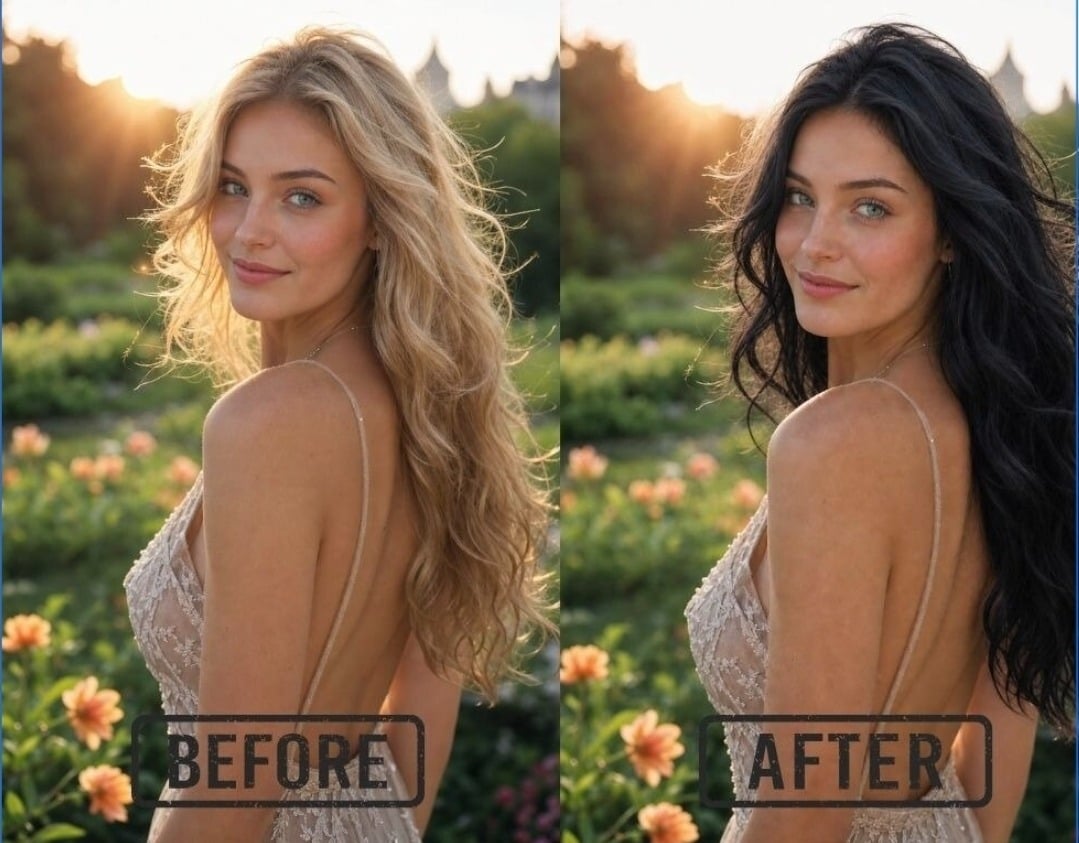
You have a collection of photos that look a bit plain. You want to turn a simple vacation snap into a vibrant painting or a futuristic scene. You can do this easily with a Free Image to Image Generator that uses artificial intelligence to redraw your pictures. This process does not just add a simple filter, it actually recreates the image based on your specific instructions.
Using an AI photo editor allows you to keep the basic shape of your original photo while changing everything else. You can turn a rough pencil sketch into a professional digital illustration in seconds. This guide will show you exactly how to use these tools to get the best results for your creative projects.
Step 1: Choose Your Source Image
The first step in the process is selecting the right image to start with. The AI uses your original photo as a structural guide. If you want to create a portrait, pick a photo where the face is clear. If you are working on a landscape, make sure the horizon line and major landmarks are visible.
You do not need a high resolution photo to start. Even a low quality thumbnail or a quick mobile phone snap can work well. The AI will fill in the missing details and sharpen the edges as it generates the new version. This makes it a great way to rescue old photos that are too blurry or small for modern use.
Step 2: Upload to the Generator
Once you have your image, you need to upload it to the platform. Most tools have a simple drag and drop area for this. After the image is uploaded, you will see a variety of settings. Do not feel overwhelmed by these options. The most important part is how the AI interprets your file.
You should look for the image strength or denoising setting. This slider determines how much the AI is allowed to change your original picture. If you set it to a low value, the result will look very similar to your upload. If you set it to a high value, the AI will take more creative liberty and might change the entire composition.
Step 3: Write a Descriptive Prompt
The prompt is where you tell the AI what you want the final result to look like. You should describe the style, the lighting, and any new elements you want to add. Instead of just saying cat, you should say a fluffy orange cat sitting on a throne in a royal palace.
Specific details help the AI understand your vision. You can mention specific art styles like oil painting, watercolor, or 3D render. You can also describe the mood, such as dark and moody or bright and cheerful. The more descriptive you are, the closer the result will be to what you imagine.
Step 4: Adjust the Influence Settings
This is the technical part that makes image to image different from standard text to image tools. You need to balance the prompt with the original image. Most people find that a strength setting of around 0.5 or 0.6 is a good middle ground. This keeps the shape of your photo but allows the AI to apply the new style effectively.
If you find that the AI is ignoring your prompt, try increasing the strength. If the AI is making something that looks nothing like your original photo, turn the strength down. It often takes a few tries to find the perfect balance for a specific image.
Step 5: Generate and Refine
Click the generate button and wait for the AI to work. You will usually get a few different versions to choose from. Look at them closely to see which one captured your idea best. You might find that one version has the perfect lighting while another has a better character design.
You can take the best version and run it through the process again. This is called iterative refining. By using the new AI generated image as your next starting point, you can slowly perfect the details. This is how professional artists use AI to create complex and polished pieces of art.
Tips and Best Practices
To get the most out of your AI tools, you should follow a few simple rules. These tips will help you avoid common frustrations and get high quality results every time you start a new project.
| Style | Best Use Case | Resulting Look |
| Oil Painting | Portraits and landscapes | Classic, textured, and artistic |
| Cyberpunk | City streets and technology | Neon lights, dark shadows, and futuristic |
| 3D Render | Character design and products | Smooth surfaces, realistic lighting, and modern |
| Watercolor | Nature and soft scenes | Light colors, bleeding edges, and gentle feel |
| Sketch | Concept art and ideation | Pencil lines, rough textures, and hand drawn look |
Focus on the composition of your original image. The AI is very good at following lines and shapes. If your original photo has a strong leading line or a clear focal point, the AI will preserve that. This is why even a simple stick figure drawing can become a beautiful masterpiece if the basic composition is solid.
Use negative prompts if the tool allows it. A negative prompt tells the AI what you do not want to see in the image. Common negative prompts include blurry, distorted, extra fingers, or low quality. This helps the AI stay on track and produces a much cleaner final image.
Pay attention to the aspect ratio. If you upload a square photo but ask the AI to generate a wide landscape, the image might look stretched or have strange borders. Try to match the output settings to the dimensions of your original file for the most natural look.
Common Mistakes to Avoid
Many beginners make the mistake of writing prompts that are too long and confusing. The AI can get lost if you give it too many conflicting instructions. Keep your main subject at the beginning of the prompt and put the style details at the end. This helps the AI prioritize what is most important.
Another common error is ignoring the image weight. If you leave the weight at the default setting, it might not be right for your specific photo. Every photo is different. A dark, moody photo might need more AI influence to become a bright cartoon than a simple line drawing would. Always experiment with the sliders before giving up on a prompt.
Do not expect perfection on the first click. AI generation is a creative process that involves some trial and error. You might need to generate ten or twenty images before you find the one that looks exactly right. This is normal and part of the fun of using these tools.
Avoid using images that are too busy or cluttered. If there is too much going on in the background, the AI might get confused about what the main subject is. You can use a basic photo editor to crop your image or blur the background before you upload it to the AI generator. This gives the AI a clearer path to follow.
Summary of the Workflow
Reimagining images is a powerful way to express your creativity without needing advanced drawing skills. By following a structured workflow, you can turn any visual idea into a reality.
| Process Step | Action to Take | Expected Outcome |
| Preparation | Select a clear source image | A solid foundation for the AI |
| Input | Upload and write a detailed prompt | Clear instructions for the machine |
| Adjustment | Set the denoising strength | A balance between old and new |
| Generation | Run the AI and review results | Multiple creative variations |
| Refinement | Re-upload the best result | A polished and professional final piece |
The technology behind these tools is improving every day. You can now create things that were impossible just a few years ago. You should take the time to explore different styles and see how the AI reacts to different types of input. You might be surprised at how much you can achieve with just a few clicks.
Whether you are a professional designer looking for inspiration or a hobbyist who wants to make cool art for social media, image to image AI is a valuable tool. It bridges the gap between a rough idea and a finished piece of art. Start with a simple photo today and see where your imagination takes you.
Conclusion
Using a Free Image to Image Generator is one of the most exciting ways to interact with modern technology. It allows you to take control of the creative process and produce visuals that are truly unique. By understanding how to balance your original image with AI prompts, you unlock a new world of artistic possibilities.
Remember to keep your prompts clear and your settings balanced. Do not be afraid to experiment with wild ideas or strange styles. The best part of using an AI photo editor is the ability to fail fast and try again until you get something amazing. With practice, you will be able to transform any existing image into a stunning work of art that looks like it was made by a professional.




-

 Resources5 years ago
Why Companies Must Adopt Digital Documents
-

 Resources4 years ago
A Guide to Pickleball: The Latest, Greatest Sport You Might Not Know, But Should!
-

 Resources1 year ago
50 Best AI Free Tools in 2025 (Tried & Tested)
-

 Resources1 year ago
Get Paid $5000+ a month to write : Discover 30 Spectacular Websites That Reward Your Writing Effort
Crossy
07/20/2026 at 1:17 AM
This is such a cool concept! I love the idea of taking a regular photo and transforming it into something completely new, almost like giving it a second life. It reminds me of when I first discovered how a few simple prompts could completely alter a basic image, and the results were often surprisingly artistic. I’ve spent a lot of time playing around with these tools, turning my pet photos into fantastical creatures and my landscape shots into watercolor masterpieces. It’s like having a digital art studio at your fingertips.
It makes me wonder, what’s the most unexpected or wildest transformation you’ve managed to achieve with these generators? I’m always looking for new ideas to push the boundaries of what’s possible with image AI.
Jingle Maker
07/23/2026 at 1:14 AM
The concept of transforming plain photos into something entirely new with AI image-to-image generation is fascinating. I’ve been experimenting with it myself, and the ability to take a standard photo and imbue it with a specific artistic style, like turning a landscape into an oil painting or a portrait into a comic book character, is truly impressive. It’s more than just a filter; it’s a creative reimagining.
Smith
08/29/2026 at 2:43 PM
I’ve been using edit photos online with AI on similar work and it cut a lot of trial and error.