Tech
The Buyer’s Guide to 3D Model Conversion Software

Choosing the right 3D model conversion software comes down to a few key decisions: which format your destination tool expects, how much file data you need to preserve, and whether privacy or convenience matters more. By weighing these factors early, you can avoid wasted hours and failed exports.
What Makes a 3D Converter Right for Your Workflow?
The critical factor in any conversion is matching your output format to your pipeline. STL is ideal for printing but loses color and texture; GLB works well for web and AR; FBX is best for animated characters. When choosing a converter, look for one that supports the specific formats you use and that signals it will preserve important data like textures or rigs. Another major factor is where the conversion happens. Many free tools upload your file to a server, which can be risky for sensitive designs, while browser-based tools that process locally keep your data private. Cost matters as well, so check for hidden limits like file size caps or paid upgrades after a trial.
The Formats That Matter: A Side-by-Side Refresher
A quick refresher on common formats will set the stage for smarter tool choices. Each one trades off features for a specific purpose.
| Format | Best for | Geometry | Textures | Animation |
| STL | 3D printing | ✓ | ✗ | ✗ |
| OBJ | Static mesh exchange | ✓ | ✓ (separate file) | ✗ |
| FBX | Game engines, animated assets | ✓ | ✓ | ✓ |
| GLB/glTF | Web, AR, real-time | ✓ | ✓ (packed) | ✓ |
| 3MF | Modern 3D printing | ✓ | ✓ | ✗ |
| STEP | CAD exchange | ✓ | ✗ | ✗ |
STL remains the standard for 3D printing because virtually every slicer supports it, but it stores no color, texture, or unit data. OBJ is a plain-text static format with materials in a separate .mtl file. FBX is Autodesk’s proprietary standard for moving rigged characters. GLB and glTF are open standards for web and AR, packing PBR materials, textures, and animations into an efficient file. 3MF brings color and materials to printing, though support varies. STEP serves CAD-heavy, precision workflows.
Choose the format that matches the destination tool you will import into, and you have already solved the biggest conversion problem.
What You Need in a Converter: Privacy, Formats, and Price
When you start comparing converters, a few features matter more than others:
- Local processing: If privacy is your goal, look for a tool that converts directly in your browser and never uploads your project file.
- Format coverage: Your converter must read the source and export a clean valid version of the target format; otherwise you will spend hours cleaning up the result.
- File size limits: Many free tools limit uploads to between 50 MB and 100 MB; high-resolution scans often exceed this, so check caps before you rely on one.
- Ease of use: A one-off conversion should not force you through a steep learning curve.
Purely cloud-based tools offer convenience but often store your documents for a few hours or days. A browser-based converter that runs locally is the best option for hobbyists and professionals who need quick results without compromising privacy. When your job involves converting hundreds of files, a desktop utility or API may be worth the price.
How to Choose the Right Software: An Evaluator’s Framework
Step 1: Define your destination pipeline
Before you even open a converter, write down which program the model will enter next. A designer preparing a CAD part for printing will choose STL or 3MF, while a game developer moving a character into Unity will need FBX or GLB. Doing this step first saves you from repeated conversions and fixes.
Step 2: Gather a realistic test model
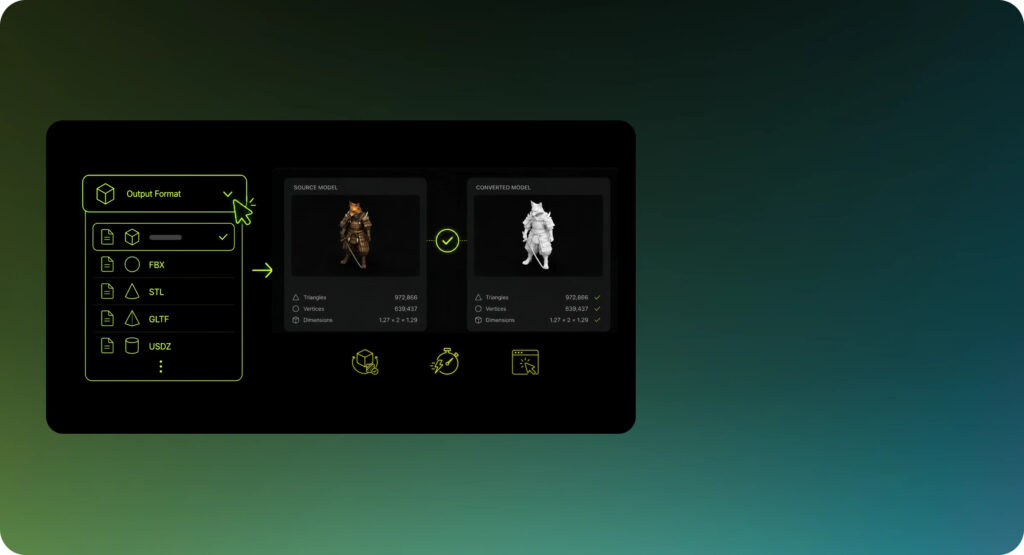
Choose a realistic sample that matches your normal workload, including representative curves, textures, and internal structure. If two output formats matter to your pipeline, plan to test both. Confirm that the sample fits the converter’s supported maximum file size.
Step 3: Convert the file and inspect the output
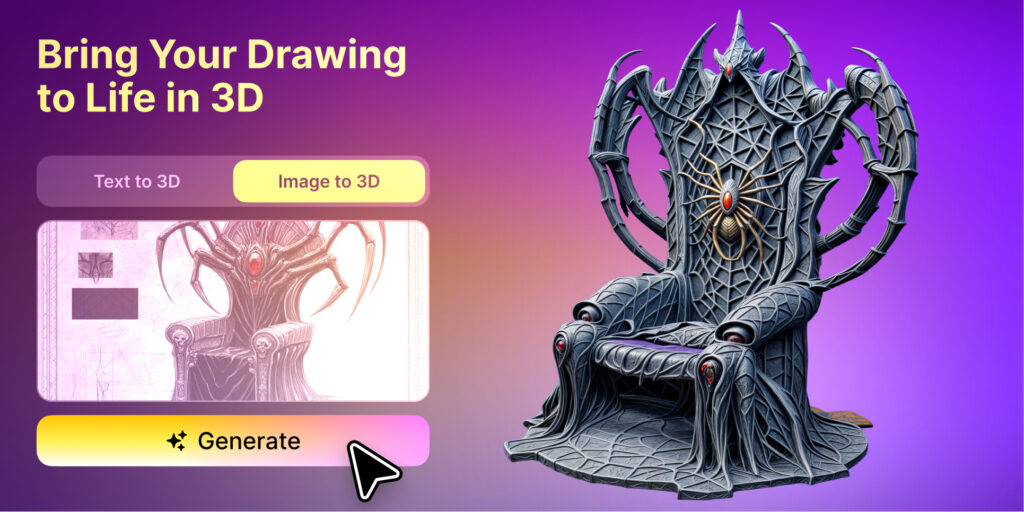
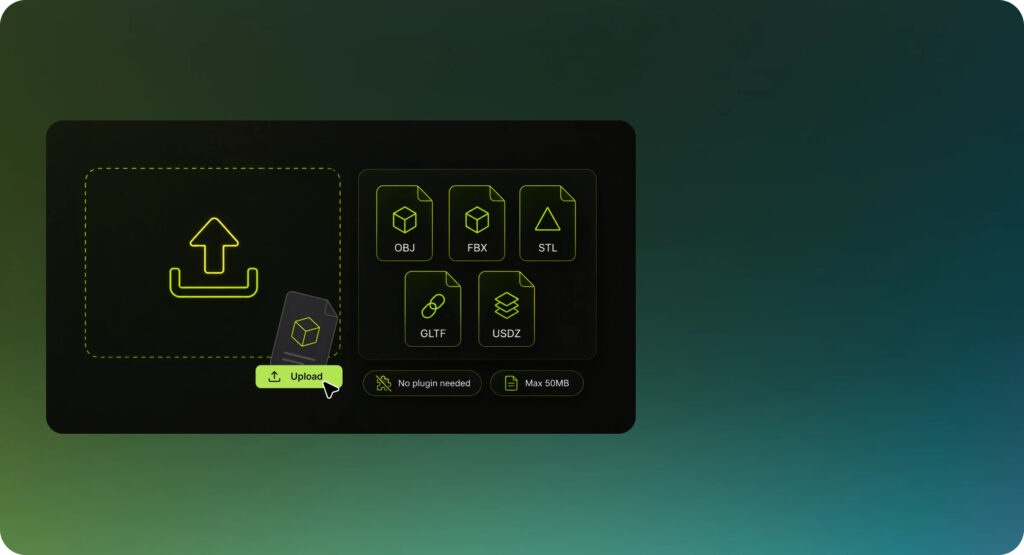
Convert the test file to the target formats and inspect each output in its destination application. Meshy is a strong first test because it is free, runs directly in the browser with no installation, and supports FBX, OBJ, GLB, STL, and USDZ; learn more about supported formats and the free workflow. Check for missing textures, flipped normals, truncated geometry, scale changes, and non-manifold errors. A real file test is more reliable than any vendor claim.
The whole point of this evaluation is that you select a converter based on evidence, not on someone’s word, so make sure every export passes this controlled test.
Common Conversion Problems and Fixes
A reliable converter is half the battle. Even so, files can fail to convert. Here is a practical checklist for debugging common hiccups.
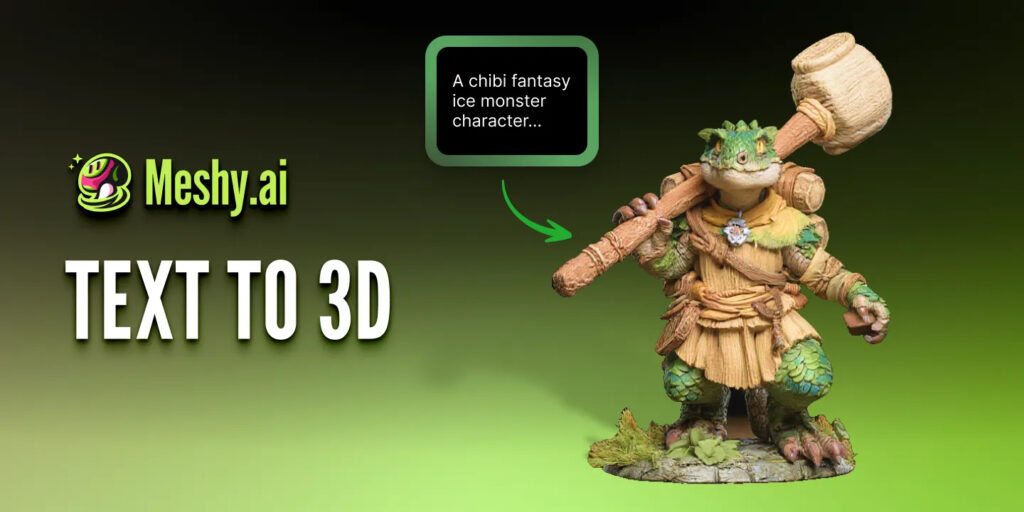
- Missing textures or white models. If the output shows white surfaces, the texture may not have been assigned. Load the model in a 3D editor, check material slots, and re-export with the correct UV map.
- No solid geometry errors. When a converter reports it cannot find a manifold geometry, the source may contain point clouds, linework, or 2D drawings that were never meant to be 3D-printed. Check the object in your authoring program and delete any non-solid helpers before exporting again.
- Non-manifold edges or reversed normals. These prevent slicing and glitch game engines. In your editor, select all edge loops and clear non-manifold parts, then recalculate outside normals. Free converter tools and STL repair apps can also clean simple breaks.
- Oversized meshes. Many converters cap the file size at 50 MB to 100 MB. Remesh high-polygon models to a lower count, or split the object into two parts, convert each separately, and recombine them in your destination app.
- UV coordinate loss. This happens when the target format handles texture spaces differently. Some converters let you export with a pre-baked texture; otherwise unwrap the model again and assign your maps to a fresh UV layout.
If these steps sound like ordinary modeling chores, that is partly the point. Good conversion software only does the boring, perfectly reproducible translation; it cannot fix an under-constrained mesh or a broken UV shell that you should address at the source.
Preparing Models for Specific Outputs: STL and Beyond
These best practices are independent of your conversion tool, but they apply most strongly when you use a converter in the middle of a printing or game-prep workflow.
- Set binary STL and sensible tolerances. Start with chordal and angular tolerances appropriate to the model, then test the result in the slicer. Export in binary to keep file size down.
- Keep STLs under 20 MB to avoid slow slicing. If your build is bigger, increase the chordal tolerance a bit or remesh fine-detail sections separately.
- Verify that your mesh is manifold. Check for open edges, internal faces, and mismatched normals with a repair utility and your own eyes. You might need to reduce a million-triangle scan to a few hundred thousand triangles before a converter can handle it.
- Test the output in your slicer or game engine before running an entire batch. Even a perfect conversion does not guarantee that a foreign engine will interpret pivot points or scaling the way you expect, so validate a small export first.
The Bottom Line: Choosing Software as Part of Your Process
Step back from single comparison and look at the whole pipeline. A converter is one link in a chain that starts inside your modeling tool and ends in print bed or game build. The right software fits a broader CAD-to-print or sculpt-to-game workflow, not just a file exchange.
A good converter will import cleanly, apply sensible export profiles, and resist bloat. A poor one may always load FBX files but add millions of unnecessary polygons or write textures as large saturated PNG maps. Reading these small warning signs before you trust it with a deadline does not take long and gives you a precise mental model of that tool’s limits.
Most one-off jobs can be handled by a free browser converter. Meshy works without installation and also provides free browser tools for viewing converted assets and compressing large 3D files, creating a practical converter-viewer-compressor workflow.
For occasional jobs, a free browser converter that supports files up to 100 MB is often sufficient. Agencies handling hundreds of daily conversions may benefit from a desktop license or API-based pipeline.


-

 Resources5 years ago
Why Companies Must Adopt Digital Documents
-

 Resources4 years ago
A Guide to Pickleball: The Latest, Greatest Sport You Might Not Know, But Should!
-

 Resources1 year ago
50 Best AI Free Tools in 2025 (Tried & Tested)
-

 Resources1 year ago
Get Paid $5000+ a month to write : Discover 30 Spectacular Websites That Reward Your Writing Effort